
Workspace guide
Try a local browser profile on Windows, then connect your team and phone to a shared HTTPS workspace.
Watch the installation walkthrough
Follow the Windows setup, then see how to install the Android app and connect it to your team’s workspace.
Download the video (MP4)Install on Windows
Use 64-bit Windows 10 or 11 with Microsoft Edge or Google Chrome installed.
-
Get
Multi8Browser-Setup.exefrom Downloads. The current installer is unsigned. Verify the package against the published SHA-256 checksum before running it. - Run the installer under your Windows account. Open Multi8Browser from Start and choose Try local demo.
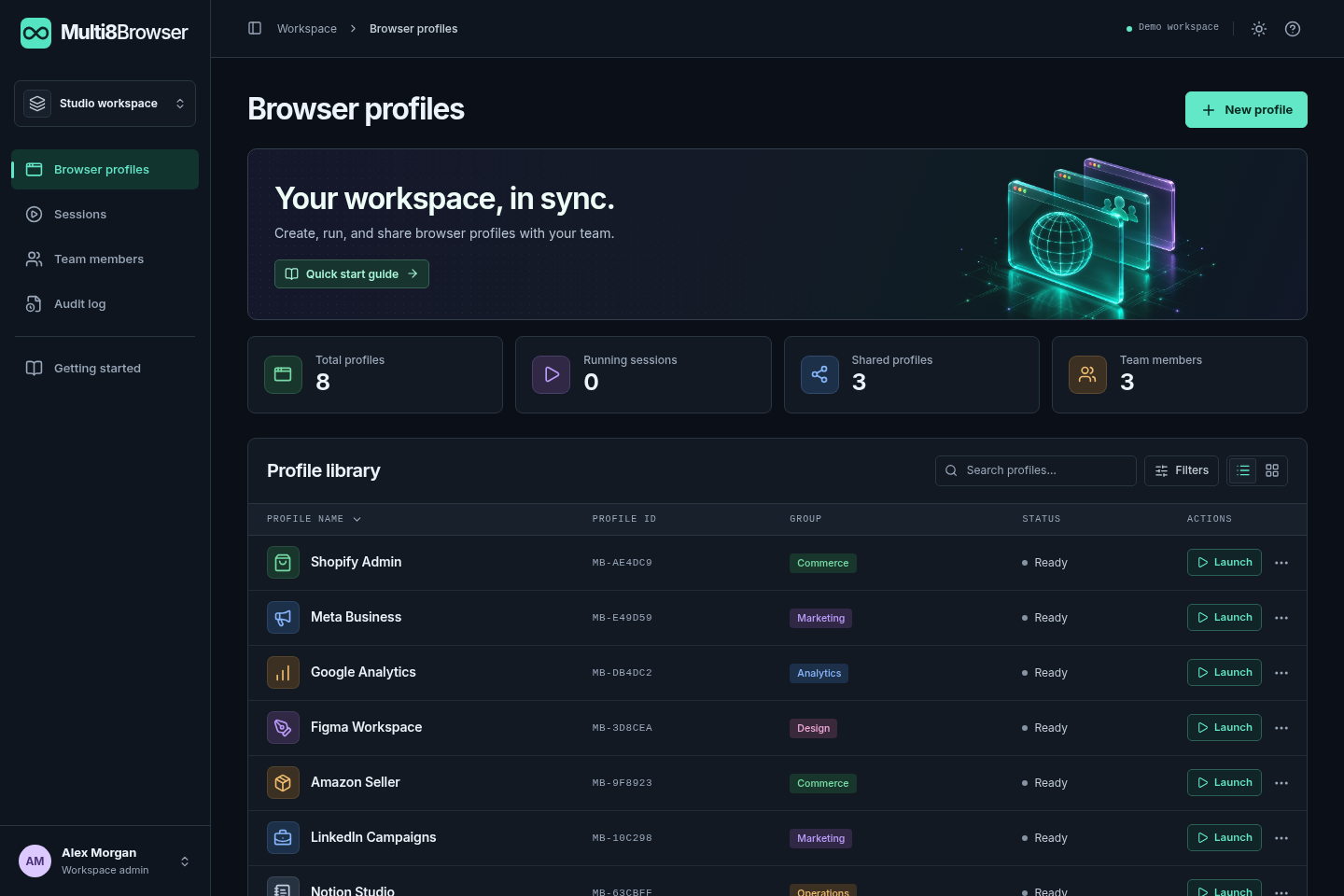
- In Browser profiles, choose Launch on a sample profile. Select Sign in to sample notebook, choose End session, then launch the same profile again. The saved sign-in opens the team notebook.
Host a team workspace
The local demo runs on your PC’s loopback address. To give colleagues and phones access, start the team host on a reachable hostname with a trusted certificate. Keep that computer online during browsing.
Prepare the host
- Choose a DNS name your devices can resolve and a TCP port they can reach. Allow the port from your team network in the host firewall.
- Provide a PEM certificate chain for that hostname and its matching private key. Give the hosting Windows account read access to both files.
Start the team host in PowerShell
In PowerShell under the hosting account, replace the example address and file paths. On first start, the script prompts for an administrator email and a workspace password of 12–256 characters.
$runtime = Join-Path $env:LOCALAPPDATA 'Programs\Multi8Browser\runtime'
$teamHost = Join-Path $runtime 'Start-TeamHost.ps1'
$settings = @{
  WorkspaceOrigin = 'https://browser.example.org:8443'
  Certificate     = 'C:\Multi8TLS\fullchain.pem'
  PrivateKey      = 'C:\Multi8TLS\privkey.pem'
}
& $teamHost @settings -InitializeAdmin
For subsequent starts, use the same settings and run
& $teamHost @settings. Keep the PowerShell process
running. Open the HTTPS address on the desktop and sign in as the
administrator.
Updating or backing up the host
End active browser sessions, stop the host with Ctrl + C, and back up its complete private data directory before updating. On Windows the browser vault uses the hosting account’s DPAPI key. Restore it under the same account.
Connect Android
Use Android 8.0 or later with up-to-date Android System WebView or Chrome. The phone must reach the team host and trust the certificate through Android’s system certificate store.
-
Get
Multi8Browser.apkfrom Downloads and open it with Android’s package installer. This APK uses a development signing key. An in-place update requires a matching signing identity. - Open Multi8Browser. Enter your team’s HTTPS workspace address or paste the private invitation link from your teammate. Tap Open workspace and confirm the hostname.
- Sign in, or choose your name and workspace password when accepting an invitation. Open the navigation menu for profiles, team members, sessions, audit, and onboarding.
To change hosts, tap Workspace and then Change workspace. Confirming the switch clears the previous workspace’s local web data and cookies on the phone.
Create a signed-in profile
- In Browser profiles, choose New profile. Give it a recognizable name, optionally choose a group and color, and enter the target site’s HTTPS start URL.
- For a separate identity provider or asset host, expand Site permissions. Enter its exact HTTPS origin, one per line, under Additional HTTPS origins. Choose Create profile.
- Choose Launch and sign in to the target site inside the remote browser. On a phone, tap a site field and open the keyboard controls to enter text.
- Choose End session to save the supported browser state and release the profile for the next user.
Sessions and audit
- Return to an open browser
- Choose Sessions to see active profiles and their users. Choose Open on your own session from the same signed-in device. An authorized manager can end a session to release the profile.
- Review access changes
- Open Audit log and search by person, profile name, or action. Entries show who invited a member, granted or revoked access, or opened or ended a session.
- Check the MCP connection
- In Getting started, expand Connect from your phone and select Test connection. The result shows the profiles and active sessions available through your current sign-in. The team API and MCP use the same HTTPS workspace address.
Troubleshooting
The phone cannot reach the workspace
Use the team hostname and port from the PowerShell command. Check
that the host process is running, DNS resolves on the phone’s
network, and the firewall permits the connection. A loopback
address such as 127.0.0.1 points to the phone itself.
The phone reports a certificate error
Check the certificate’s hostname, expiry, and full chain on the team host. Use a chain trusted by Android’s system CA store, then retry the original HTTPS address.
Android shows “Browser stopped”
Select Retry workspace. If the renderer stops again, update Android System WebView or Chrome on your device. Change workspace lets you enter another host.
The profile is in use or my session expired
Look in Sessions for its active user and end the session if you have permission. An idle browser lease expires after 30 minutes without frame or input requests. Sign in to the workspace again if its eight-hour sign-in has expired.
The target site does not finish signing in
Check Site permissions for any required HTTPS origins. End the active session before editing the list. The saved sign-in is tied to the approved origins, so you may need to sign in again. Sites that require pop-ups, passkeys, hardware access, DRM, or unsupported storage can require another sign-in flow.
The Windows demo does not start or stop
Check that Edge or Chrome is installed. See
%LOCALAPPDATA%\Multi8Browser\demo-status.txt for
startup details. Use Stop local demo from Start
if a browser process stays open after closing the demo window.